Selamat Datang!
Welcome to my page!! Lots of stuff to think about, not enough time to get to it all...


Navigation
Status Updates!

~♥~ Jay's Lounge ~♥~
something else here idk yet!!
Tips & Tricks for my Finance Spreadsheet
Balancing a budget should be FUN. You need JOY and WHIMSY in the mundane aspects of life or you will die. Here's some ways I make my finances spreadsheet super fun!!
Basic Layout
My finances spreadsheet is set up with an overview on the first page, then one page for each month (additional pages are added on the bottom toolbar of most software - don't forget to rename them to make navigation easier!).
My Overview: sum of liquid assets and debt, a credit utilization thermometer, miscellaneous notes. A simplified template is shown below:

Liquid assets/debt: Pretty straightforward, just a list of all of the accounts you have, the amounts you have in them, and then in the total line (box B8 in the sample) write =SUM(B4:B7) or if you have more than 4 accounts then change the range in the parentheses.
Credit Utilization Thermometer: This one involves a bit more math. See "Automated Aspects" below for the details of coding it.
Each month: list of set monthly bills and due dates, log of checkbook, notes for how each paycheck will be allocated.

Design Aspects
Automated Aspects
Credit Limit Thermometer
To start, I write the credit limit for each card in the column next to its balance (boxes C12 thru C14) and make the text the same color as the background so it's hidden. In the sample I've got $1000, $2000, and $500 for a total limit of $3500. That's shown in the top line of the thermometer (and it's done with the =SUM function like the assets/debt totals). The next row, total debt, is set equal to box B15. The utilization is set as =F4/F3, the current debt divided by the credit line available.
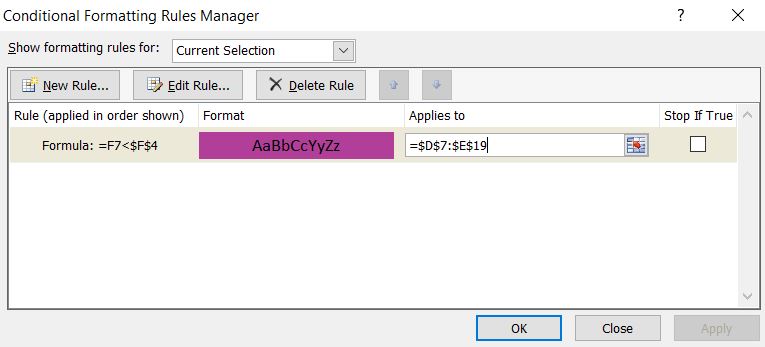
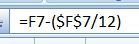 The dollar signs in the F7 within the parentheses is so that the credit line stays the same value - while the F7 at the start will change when we apply this formula to the rest of the cells. You apply the rule to the rest of the thermometer by highlighting that second box and dragging the right corner down to the bottom row:

 And here is a demonstration of the thermometer updating itself with a change in overall debt:
 And that's the whole thermometer!! If it seems like a long hassle to write all that up, don't worry I'm going to upload the full sample spreadsheet at the bottom of this page (after I finish the monthly sample sheet too!!)
Remaining Bills
Back